
By Damaris Wren Ashfield · Publisher: ZeroDepositSlots Returning Screen Notebook
A message arrives, you switch apps, and the game looks different when you return. Perhaps a panel is still open or the controls have shifted. With mobile social games, the useful first step is to read the screen again. An interruption does not tell you whether a round ended or a setting changed.
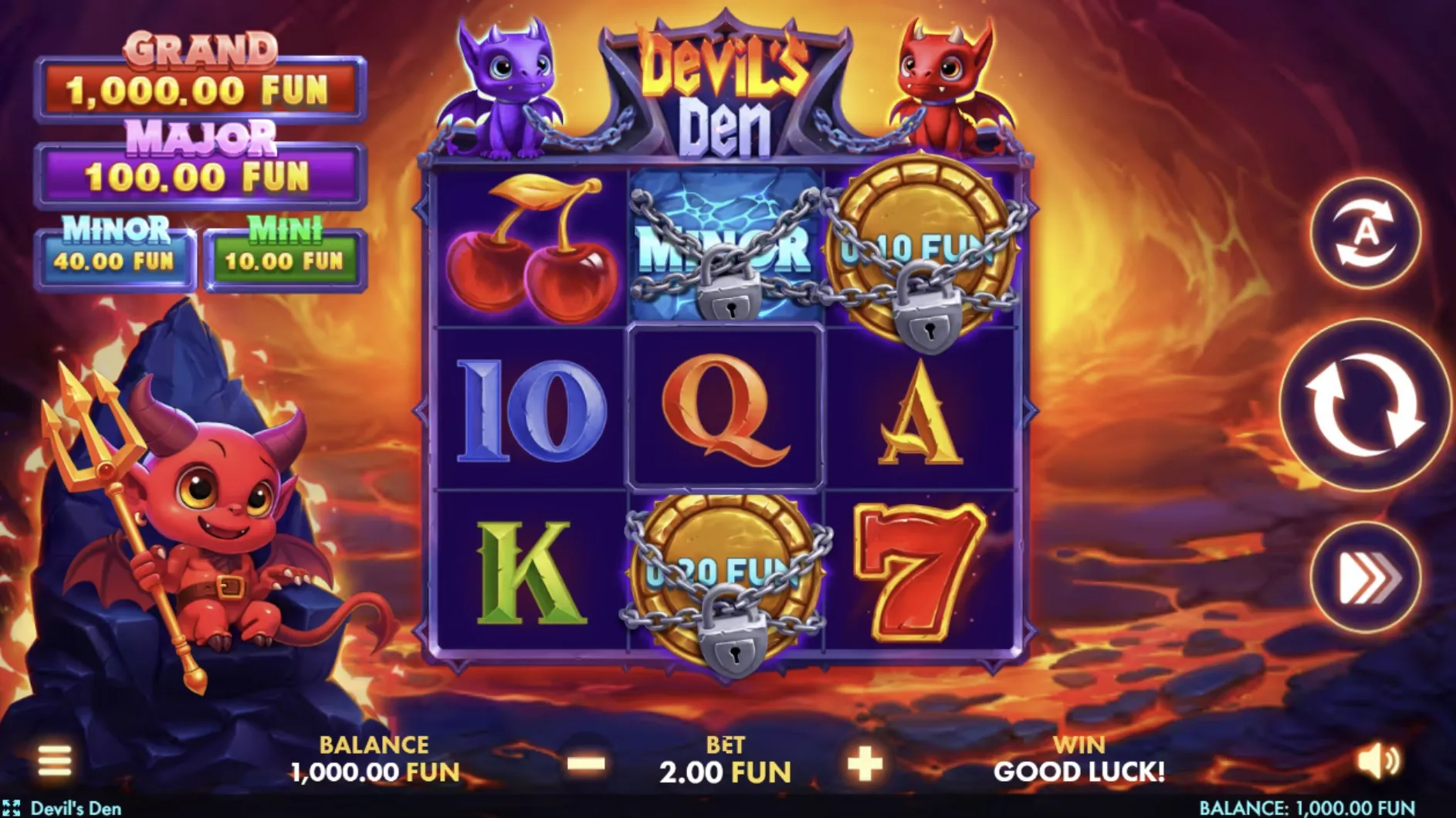
Read the returning screen
Look for the loaded game title, any open message and the current button labels. A familiar background can hide a different state. If a result is still being shown, give it time to settle. Repeated taps make it harder to distinguish the original interruption from actions you took after returning.
Check the displayed unit and the setting beside the next action. A remembered balance is not a complete record of a round. This site’s pages use different virtual point names, so keep the exact label with any note. Do not infer that one counter has been converted into another simply because it changed.
The September 2026 page collection includes games inside embedded frames. The surrounding website and the game inside the frame are separate interfaces. A working site menu does not establish that the game has finished loading. Equally, a game panel can remain open while the surrounding page scrolls.
Separate the controls
Browser tabs, page navigation and game buttons can sit close together on a phone. Before using mobile social games again, identify which layer holds the control you need. Closing a help panel, returning to the homepage and reloading the tab are different actions, even when their icons look familiar.
- Wait until the visible screen stops moving or loading.
- Read any message before dismissing it.
- Find the game title and the next action’s current label.
- Resume only when you can explain what that action does.
Choose the check that fits the symptom
| What you see | First check | Avoid assuming |
|---|---|---|
| A hidden button | Scroll and open panels | The action is unavailable |
| A changed counter | Unit and result labels | A round was repeated |
| A blank game area | Loading message and connection | Progress has been erased |
Adjust your view deliberately. Turning the phone may give a wide panel more room, while a larger text setting may help with the surrounding article. Neither guarantees that an embedded game will resize. Check the result of one change before making another, and keep your fingers clear of action buttons.
Make a useful problem record
If mobile social games remain difficult to use, a short description helps more than a string of repeated attempts. Record the page, the visible game title and what happened immediately before the problem. Separate what you saw from what you think caused it. That gives a later reader something concrete to follow.
- Include the browser name and device type.
- Describe whether the phone was upright or sideways.
- Quote the visible message or button label accurately.
- Note whether the issue affects the page or the embedded game.
Avoid clearing browser data as an automatic first response. The site’s privacy page describes locally stored progress, and removing local data can remove information you wanted to keep. That statement does not establish how every embedded game stores its own state. Read the relevant help before choosing a reset.
For a confusing result, return to the feature-reading questions. When someone else is waiting for a turn, make the pause part of the conversation. Mobile social games do not need to fill every spare moment; a screen that remains unclear is a reasonable place to stop.
Author’s opinion
I prefer a calm return to a fast restart. Reading the current label and making one deliberate change gives me a clearer picture than trying several fixes at once. If I still cannot tell what a button will do, I leave it alone and keep a brief note. The next tap can wait until the screen makes sense.